
You downloaded the Claude app on your Mac. Now what?
Claude's chat, and other AI chat programs like ChatGPT, Perplexity, and Gemini, are mostly a brain with eyes. They read what you give them, and they answer. Claude Code is an AI agent with a brain, eyes, and most importantly, arms! It can do things on your behalf, working on files on your computer and interacting with websites.
Because Claude Code can change things on your computer, take a few minutes to set it up first, so you can see what it's doing and undo what you don't like. These steps are for the Claude desktop app on a Mac. You'll do most of them by clicking or by asking Claude Code in plain English.
1. Get a paid plan
Unfortunately, Claude Code isn't included in the free plan. Pro is $20 a month, and Max starts at $100 a month. Pro is enough to find out whether you like it. Your plan's usagePlans and prices change, so check Claude's pricing page. is shared across Claude chat and Claude Code.
2. Set your privacy
Do this before you give Claude anything to read.
- Open the Claude app and click your name in the bottom left corner.
- Select Settings, then Privacy.
- Turn off Help improve our AI models.
- Turn off Location metadata, which lets Claude use your city or region.
With this off, your new chats and Claude Code sessions aren't used to train future models, and Anthropic keeps Claude Code sessions for 30 days. Regular chats stay in your history until you delete them, then are removed within 30 days. With the setting on, Anthropic can keep your data for up to 5 years. This applies to personal plans. Work and school accounts have their own rules, so check with your institution.
Turning it off doesn't make your files private from Anthropic. Whatever Claude reads gets sent to Anthropic so the model can respond. Don't give it patient information or anything else you aren't allowed to share.
3. Learn the layout
The app's icons have few labels, which can feel daunting. The layout also changes oftenSo yours may not match this drawing exactly. If you can't find something, hover over the icons to see their names., so focus on what each area does. Hover over a number in the drawing, or tap it on a phone, to see what that part does.
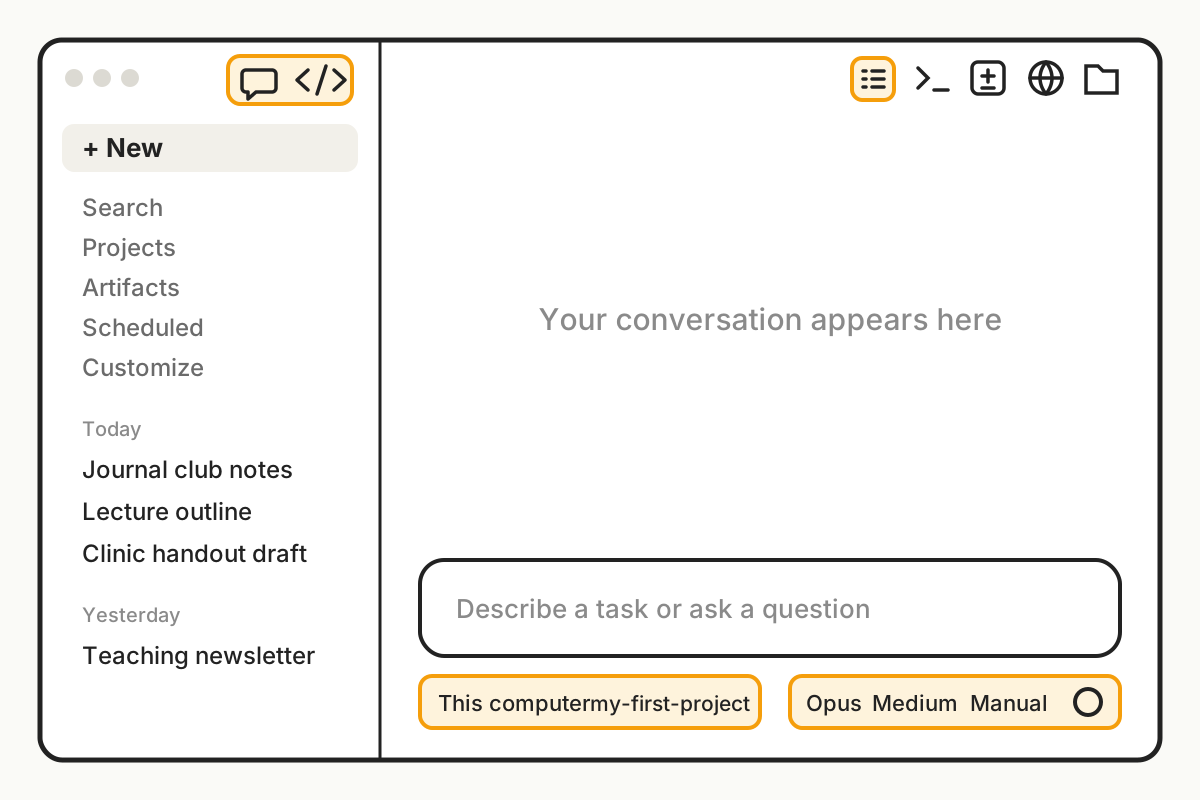 1Chat and Code. These two icons switch between them. The speech bubble is chat. The </> is Claude Code, so click that one.2New. Starts a new session. A session is one conversation with Claude Code, with its own history.3Your sessions. Past sessions are listed here. Click one to go back to it.4Side rail. Opens details on your session: where it is running, how full the context window is, and which connectors are on.5Tools. These icons open a Terminal, the changes Claude made, a browser, and your files. A few only appear once a session has started. You can ignore them for now.6Where Claude works. Leave the first control on This computer. Click the folder next to it to choose which folder Claude Code works in.7Model and effort. The model is which version of Claude you are using. Effort is how much it thinks before it answers. The defaults are fine for now.8Mode. How much Claude Code can do without asking you. Choose Manual, as explained below.9Usage. Click this small circle to see how much you have left in your 5-hour and weekly limits.
You can check how full the context window is at any time in the side rail, which is button number 4.
Start in Manual mode
Click the mode (number 8) and choose Manual. Claude Code will ask before it edits a file or runs a command that could change something. Reading files and some read-only commands can run without asking. Those are very low risk, since nothing gets edited or deleted. Manual is slower, and it's the best way to learn what those arms are doing.
When Claude asks permission
In Manual mode, a box like this appears, marked Needs your input.
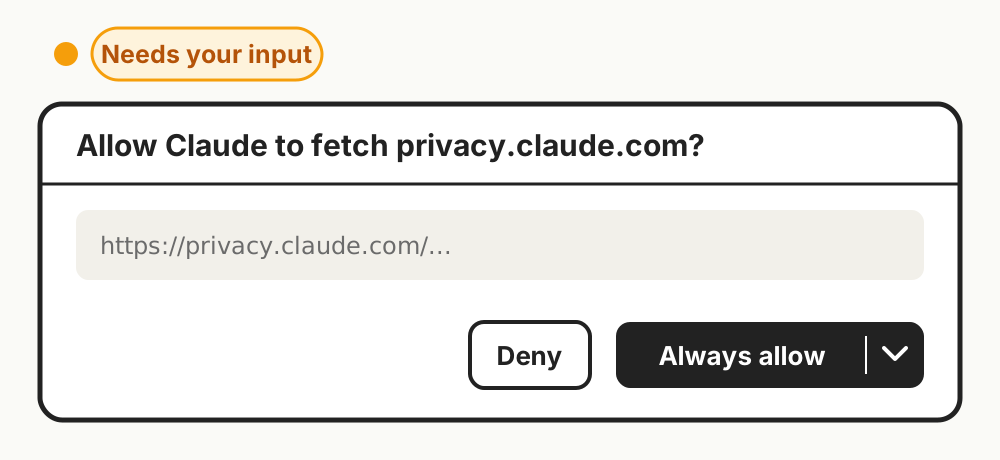
Read what it's asking before you click. Always allow remembers your answer. In this example, it won't ask again about that website. While you're learning, click the small arrow next to it and choose Allow once. The same menu offers to switch to Auto mode, which you can skip for now. Deny says no. You can also interrupt Claude at any time with the stop button in the message box.
4. Set up Git
Git saves versions of your work, so you can undo a change you don't like. Git vs. GitHub explains how it works. Here, you only need to install it, and Claude Code can do that for you.
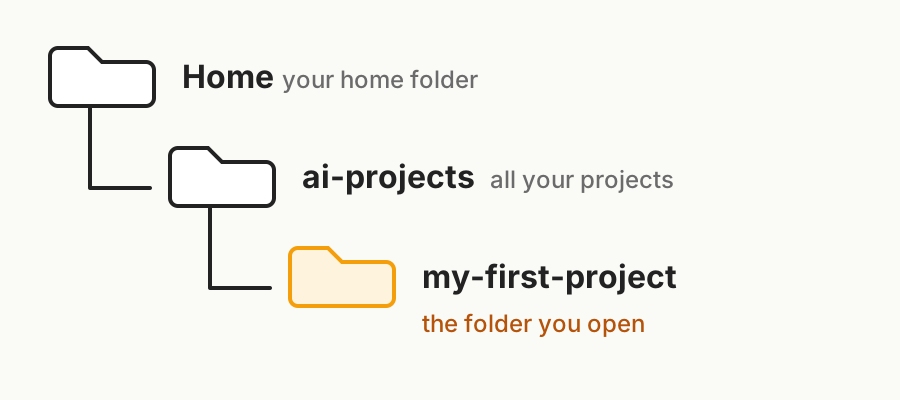
Claude Code works inside a folder, so make one now. Keeping all your projects in one main folder makes them easy to find.
- In the bottom left of the app, click the folder control and select Open folder….
- In the window that opens, press Command-Shift-H to go to your home folderKeep project folders out of cloud storage services like Dropbox and iCloud. When I tried to create a new repo inside a Dropbox folder, the Claude app blocked it. Syncing can also damage the files Git uses, so your home folder is the safer place..Keep project folders out of cloud storage services like Dropbox and iCloud. When I tried to create a new repo inside a Dropbox folder, the Claude app blocked it. Syncing can also damage the files Git uses, so your home folder is the safer place.
- Click New Folder and name it
ai-projects. - Inside it, click New Folder again, name it
my-first-project, and open it.
Then send this message:
I'm a beginner. Check whether Git is installed on this Mac. If it isn't, start the install. Then ask for my name and email and set them up in Git. I'll use the same email for GitHub.
A window may offer to install Apple's Command Line Tools. It can open behind the Claude window, so if nothing seems to be happening, check there. Click Install, agree to the license, and click Done when it finishes. Then tell Claude Code, and ask it to check that Git works. Your name and email get attached to each saved version.
5. Connect GitHub
GitHub can keep a copy of your work online. Make a free account at github.com and verify your email. Your GitHub password goes only on GitHub's own page, never in a chat. When your first project is ready, ask Claude Code to create a private repository (GitHub's word for a project) with the same name as your folder, my-first-project. Private means only you can see it.
Then send this message in Claude Code:
I'm a beginner. Help me connect this Mac to my GitHub account, one step at a time, without my using Terminal. Install the GitHub CLI if it's missing. Then run `gh auth login --web --hostname github.com --git-protocol https` and show me the web address and one-time code while it waits. After I enter the code on GitHub's page and approve the sign-in, run `gh auth setup-git --hostname github.com` and confirm with `gh auth status`. Tell me what each step does.
The GitHub CLI is GitHub's free helper tool. CLI stands for command-line interface: a program on your computer that takes typed commands. You, or Claude Code, talk to it right on your machine. It then uses GitHub's APIThink of a diner. The CLI is the server at your table who takes your order. The API is how that order reaches the kitchen. to reach your account online.
Claude Code may need to add GitHub's free tool first, and that can open a regular Mac installer. It will then show you a web address and a one-time code. Open the address, enter the code, and approve the sign-in on GitHub's page. Then go back to Claude Code, which will check that it worked. If it can't find something you just installed, quit and reopen Claude.
If it needs your Mac password, type it only into the Mac's own password box, never into the chat. If a password or key does end up in a chat, replace it right away.
When you don't understand something
You'll run into terms, buttons, and messages you don't recognize. Copy the text, or screenshot the area, and paste it into the chat. Then ask what it means.
If the answer still doesn't make sense, ask for it in plainer English. When I first started, I'd type "ELI5," short for "explain like I'm 5." Sometimes I had to keep asking for clarification. Claude Code is very patient and will keep trying.
This was the lightbulb moment for me. It felt like having a smart senior engineer patiently teaching me the how and why, to my learner's heart's content, even at 2 am. I realized I could figure out a lot on my own, with just me and Claude Code.
What's next
Now that Claude Code is set up, you can build something with it. My next two posts are sample projects you can try.