
If you're in academic medicine, you probably keep up with the literature on a research or scholarly interest. Yours might be the management of pulmonary embolism, electrocardiographic findings in occlusive myocardial infarction, or competency-based assessment in GME curricula. Keeping up by hand means saved searches, email alerts, and tabs you never get back to.
I follow what's new in practical AI: AI fluency education, faculty development on teaching AI, and practical uses of AI for efficiency. I leave out anything that involves patient health information, so no electronic health records, AI scribes, or direct patient care.
What you'll build
In this post, you'll build a literature monitor with Claude Code. It searches PubMed for new papers on your topic and grades each one read now, skim, or skip. It sorts the keepers into themes, writes a short summary of each theme, and saves every paper to a Google Sheet you can come back to anytime. Next time you run it, it picks up where it left off and shows you what's new.
This is a first project, so it assumes you've done the steps in 5 Things to Do When Setting Up Claude Code: a paid plan, your privacy settings, Manual mode, Git, and GitHub. The steps use Claude Code in the Claude desktop app on a Mac. I built mine with Opus 5.5 at medium effort, which you set in the model menu below the message box.
1. Start with one narrow topic
Pick the narrowest topic you can describe in one sentence. A narrow topic means fewer papers to sort, and it's easier to tell whether the monitor grades them the way you would.
Decide on your exclusion criteria, too. For my practical AI monitor, I exclude anything involving patient data, even when the paper is about efficiency.
Want to monitor more than one area? Build one monitor first. Once you've mastered it, you can build a second monitor for another topic.
2. Make a folder named for your topic
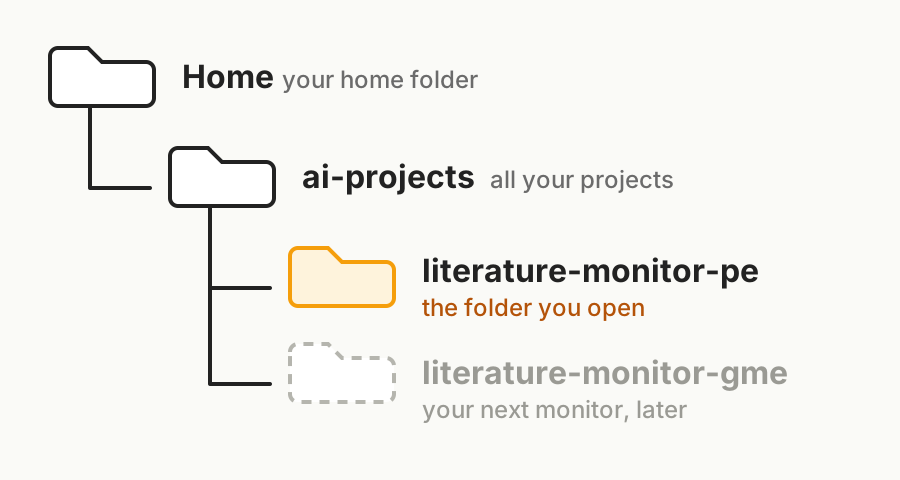
Claude Code works inside a folder on your Mac, and each project gets its own folder. Name the folder for your topic, not just "literature-monitor," because each monitor you build later gets its own folder too. Mine is literature-monitor-ai.
In the folder control at the bottom left of the app, open your ai-projects folder, make a new folder inside it named for your topic, like literature-monitor-pe for pulmonary embolism, and open that.
3. Let Claude Code interview you
Don't try to write the perfect prompt. Ask Claude Code to interview you instead. Paste this in:
I want to build a literature monitor in this folder. It will search PubMed for new papers on my topic and grade each one as read now, skim, or skip, with a 1–2 line summary and why it matters to me. Act as a panel of expert academic librarians with experience across all the health professions. Before building anything, interview me one question at a time: my topic, my inclusion and exclusion criteria, why it matters to me, what I'll do with the papers, and how to rank study designs. Then write what you learned into a CLAUDE.md file and show it to me. Don't build anything yet.

Keep the first version simple: PubMed only, the past 3 months, and check with me before doing anything big.
Give full answers. If you can, dictate them. You'll say far more out loud than you'd ever type, and the more complete your answers, the better your monitor fits you. If a question stumps you, ask Claude Code for guidance, like "What do others usually say here?" or "Give me a few options." This is a dialogueIt's OK to change your mind partway through. "Actually, no, leave out case reports" is a perfectly good answer., not a form.
When the interview ends, Claude Code shows you the CLAUDE.md file. Read it carefully, and ask for changes until it matches what you want. Mine ranked study designs differently from the textbook evidence pyramid, putting frameworks and how-to reports high because I teach. Yours should look different from mine.
What's a CLAUDE.md file?
CLAUDE.md is your project's standing notes for Claude Code. It's a plain text file in your project folder, written in Markdown, so you can open it and read it like any note. Claude Code reads it at the start of every session, which is how your rules carry over from one day to the next.
Keep it short. Claude Code reads all of it every session, so a long file takes up room in its context window. Anthropic, the company that makes Claude, recommends keeping it under 200 lines, because longer files are followed less reliably.
Put things that are always true here: who you are, your topic, your inclusion and exclusion criteria, and how to grade. In step 9, you'll add a short routine for running the monitor. Your rules and that routine fit easily.
4. Have a second AI check your rules
Before Claude Code grades a single paper, have a second AI read your CLAUDE.md. A different AI notices what the first one missed. I explain why, and how to set up Codex, in Why I Have a Second AI Check the First. Then ask Claude Code:
Have Codex review CLAUDE.md as an expert academic librarian and a skeptic. What will this search miss, and what will it let in that I don't want? Then tell me which of its points you agree with and what you'd change. Don't change anything until I decide.
When I did this for my practical AI monitor, the second AI's main point was that the setup sorted papers by relevance but ignored how much time I actually have to read. That's the kind of gap you want found before you build.
Once you've decided which changes to make, you're ready to build.
5. Build it, but check the count first
PubMed has a free API, so Claude Code can search it without you opening the website. You don't need a key for a search this size.
Even a narrow topic can return hundreds of papers in 3 months, and grading each one uses your plan's usage. So when you tell Claude Code to build, ask for the count first:
Build the search now. Before grading anything, tell me how many papers it finds. If it's more than 200, stop and give me options to narrow it, with how many papers each option would leave. I'll choose. If it's 200 or fewer, grade them, then stop and tell me how many are read now, skim, and skip.
With a count for each option, you can see how many papers you'd give up before you choose. Some ways to narrow:
- A shorter windowYou can always search further back later. I started with 3 months instead of 12, and I'm glad I did., like 1 month instead of 3You can always search further back later. I started with 3 months instead of 12, and I'm glad I did.
- A narrower topic, or a must-have word like "residents" or "emergency medicine"
- Words in the title or abstract only, not anywhere in the record
- Certain article types, like trials and systematic reviews, or no letters, editorials, and comments
- Journals you choose by name, like the ones you already read
- Free full text only, if you only want papers you can open
6. Check five papers it skipped
Good papers hide in the skips. So look at a few:
Show me 5 papers you graded skip, picked at random: the title, a link to PubMed, and one line on why you skipped it.
Open each one and ask yourself one question: is this what I'm looking for? If any belong, tell Claude Code why, and ask it to update the rules in CLAUDE.md and regrade. Five is enough to spot a pattern.
It works the other way, too. If papers in your read now or skim lists aren't relevant at all, tell Claude Code, and ask it to change the screening rules to leave that kind of paper out.
On my first run, Claude Code rechecked 40 of my skips, and 10 belonged in my practical AI monitor. My rule against student attitude surveys had grown into a rule against anything involving students. Now CLAUDE.md spells it out, and it adds a tiebreaker: when torn between skip and skim, choose skim.
7. Read the theme summaries
You won't have time to read every paper right now, and you don't need to. Have Claude Code group them into themes instead:
Group the read now and skim papers into themes, and write a short summary for each theme: what the papers show, the 1–2 papers most worth opening in full, and a list of the rest with links to their PubMed abstracts. Save the list of themes in this folder, and publish all the summaries as one Artifact.
An Artifact is a web page Claude makes and keeps for you. It's private unless you share it. It usually opens beside the chat on its own. If it doesn't, click the Artifact's name in Claude's reply. To find it again later, click Artifacts in the left menu of the app.
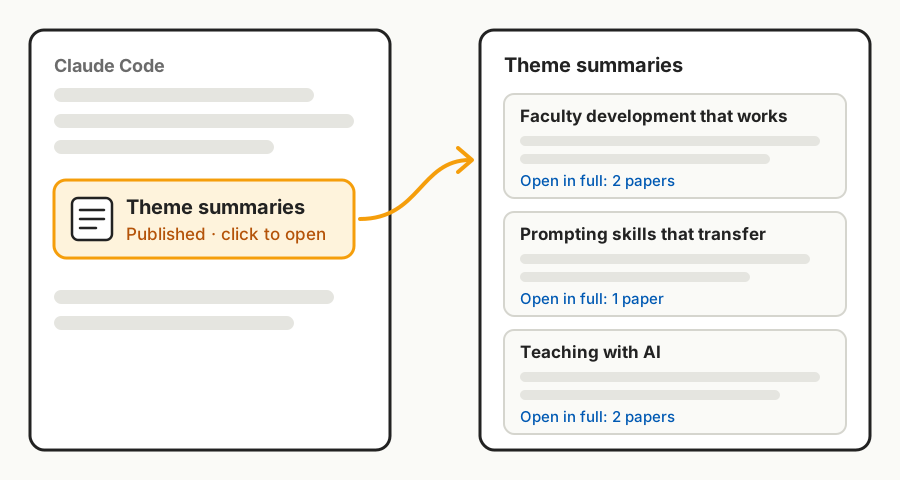
Read the summaries, then open the abstracts that catch your eye. My practical AI monitor has 11 themes, like "Faculty development that works" and "Prompting skills that transfer." Reading 11 summaries is something I can actually do. Reading 300 papers isn't.
The summaries help you decide what to open. They don't replace reading. Until you've seen that your monitor holds up over a few runs, read the paper itself before you cite it or teach from it.
8. Keep your library in a Google Sheet
The theme summaries are for reading. The Google Sheet is your library: every paper worth keeping, in one place you can search and sort anytime.
A connector lets Claude work inside another app you use, like Google Drive. To turn one on, click Customize in the left menu of the Claude app, choose Connectors, and connect Google Drive. Then ask:
Make a new Google Sheet called "Literature library" with two tabs. On the Library tab, add every read now and skim paper, one row each: title, journal, date, study design, grade, theme, summary, why it matters, the PubMed link, and a link to the free full text if there is one. On the Skipped tab, add every skipped paper with its title, PubMed link, and why it was skipped.
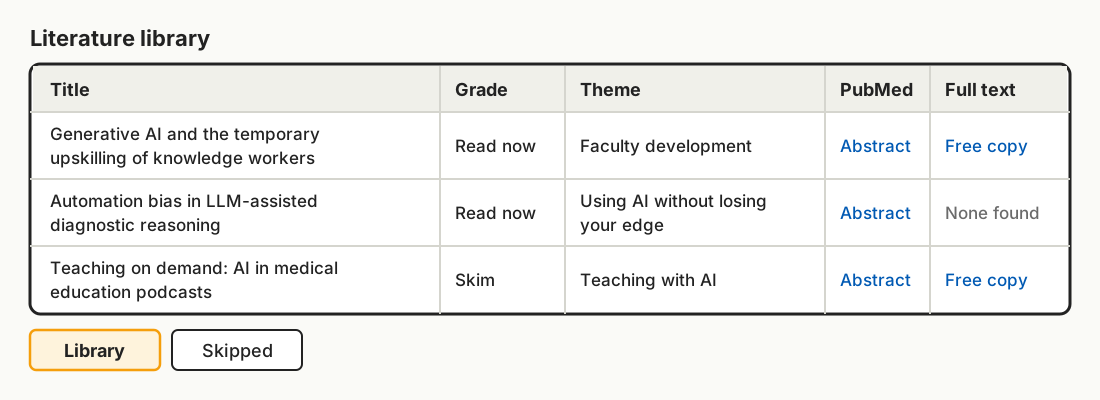
The Skipped tab is for spot checks. Every so often, scan it for anything that belongs in your monitor.
9. Save the routine and run it again
Next time, you want to start a run with one phrase, not redo these steps. So ask Claude Code to write them into CLAUDE.md:
Write the steps we just did into CLAUDE.md as a routine I can start by saying "run the monitor." Each run should search from the date of the last run (save that date in this folder), grade the new papers, show me 5 new skips to check, add the new papers to the right themes and the Google Sheet, and put a "What's new" note at the top of each theme summary that says how many new papers it got and what they add. Keep the themes stable: put each new paper in an existing theme, and if several new papers don't fit any theme, suggest a new one and ask me before adding it. Then create a private GitHub repo for this project, push everything to it, and end every run by committing and pushing.
Next time, open the folder, start a new session, and say run the monitor. It remembers when you last searched, so it looks only for papers added since then. New papers go into your existing themes. If enough of them don't fit, it suggests a new theme and asks you first, so your themes don't get reshuffled every run. And because it ends with a push to GitHub, your rules, grades, and library are backed up with their history.
For routine runs, I switch the model to Sonnet 5.5 at medium effort. I save Opus for planning a hefty build. Following saved steps doesn't need it, and Sonnet uses less of your plan.
No project is a one-shot build
A one-shot build is asking for the finished tool in a single prompt and using whatever comes back. It's fine for a quick answer. It doesn't work for a tool that's supposed to fit you.
My practical AI monitor got better each round. The second run found 9 new papers worth keeping. I wanted to see which themes they fit and how they changed each summary, but they were hard to pick out. So I asked for a "What's new" note at the top of each theme, with the newest first, and for the themes with new papers to stand out on the first page. That's why the routine in step 9 asks for it.
Plan on two or three rounds of checking and adjusting before it really fits you. Keep asking your AI questions: why it graded a paper the way it did, what it would change, what you might be missing. Grow your system in whatever direction works for you. There's no single best way.
Once this monitor fits you, you may want a second one on another topic. The steps for a run will be the same, and only your topic and rules change. That's a job for a skill, which I'll cover in an upcoming post.