
Before Claude Code builds something big, ask for its plan.
Claude Code has a setting for exactly this, called Plan mode. In Plan mode, Claude Code reads your files, works out what it would do, and explains its plan. It doesn't edit your files until you approve.
These steps are for Claude Code in the Claude desktop app on a Mac. If you haven't set it up yet, start with 5 Things to Do When Setting Up Claude Code, which explains modes and Manual mode.
What Plan mode does
Usually, you ask Claude Code for something and it starts working. In Manual mode, it stops to ask before each edit. That shows you one step at a time, but you don't see where it's headed until it gets there.
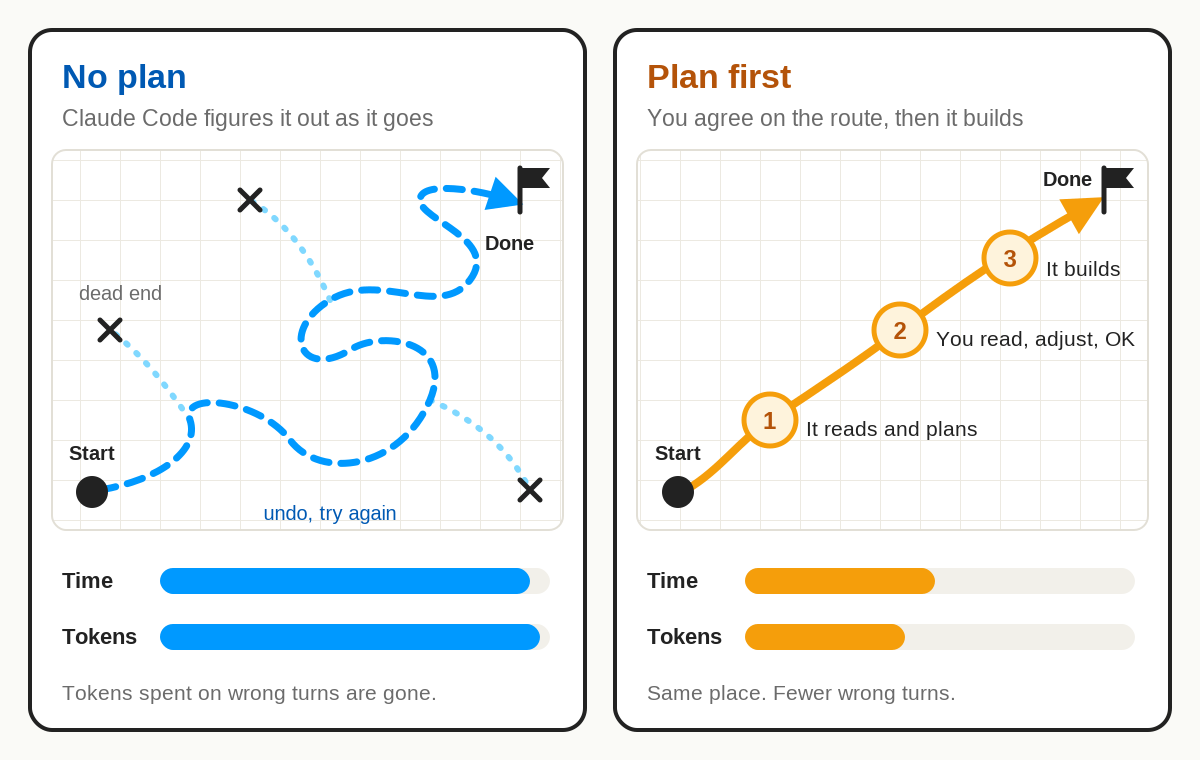
Plan mode shows you the whole route first. Claude Code can still read your files and look around. Then it writes out its plan: what it would change and how. You have two choices:
- Approve it. Plan mode ends, and Claude Code starts building.
- Keep planning. Tell it what to change, and it revises the planIt's OK to say "that's not what I meant" more than once. Catching that before anything gets built is the whole point..It's OK to say "that's not what I meant" more than once. Catching that before anything gets built is the whole point.
Both routes can end in the same place. Without a plan, Claude Code may take wrong turns, undo them, and try again. That takes longer, and it uses up more tokens (the chunks of text Claude reads and writes, which count toward your usage limits). Planning uses some tokens too, but usually far fewer than a wrong turn.
The hospital version
Think of working with a medical student. They can review the chart and examine the patient. Then they present their assessment and plan. You talk it through, ask questions, and adjust it together. Only after you agree on the plan do the orders go in.
Plan mode works the same way. Claude Code can look through your project, but no "orders" go in until you sign off.
When to use it
- Anything bigger than a small fix, especially when it touches several files.
- Tasks you can't fully describe yet. If you aren't sure exactly what you're asking for, the plan shows you whether Claude Code understood you.
- Changes you want to review before anyone sees them, like an update to a website other people use.
When to skip it
For a typo, one sentence, or a button color, reading a plan takes longer than checking the fix itself.
How to turn it on
- Click the mode button in the row under the message box. It shows the mode you're in now, such as Manual or Auto. See the app map below.
- In the menu that opens, choose PlanEarlier versions of the app called it "Plan mode." The layout changes often, so if you can't find it, hover over the icons under the message box., described as "Create a plan before making changes."Earlier versions of the app called it "Plan mode." The layout changes often, so if you can't find it, hover over the icons under the message box.
- Describe what you want built.
- Read the plan. Approve it, or keep planning and say what to change.
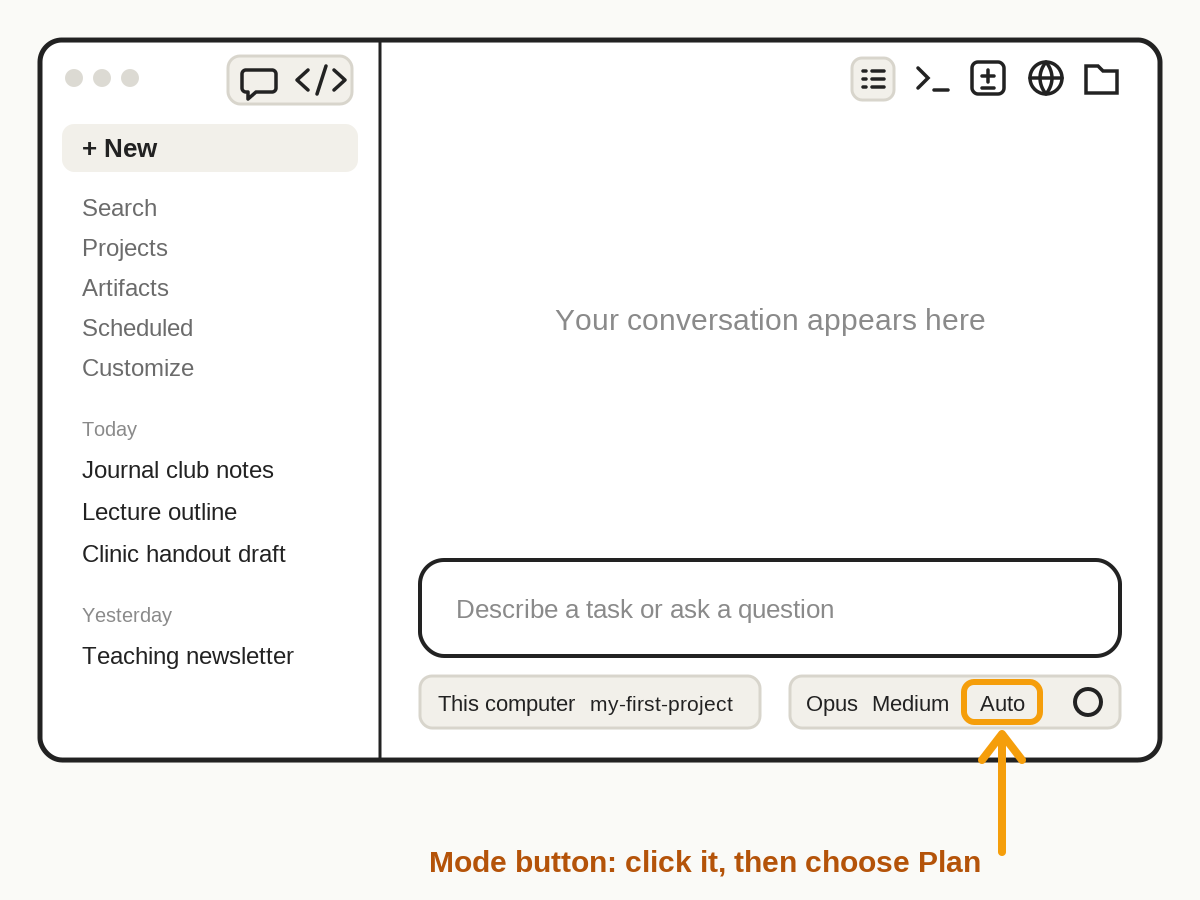
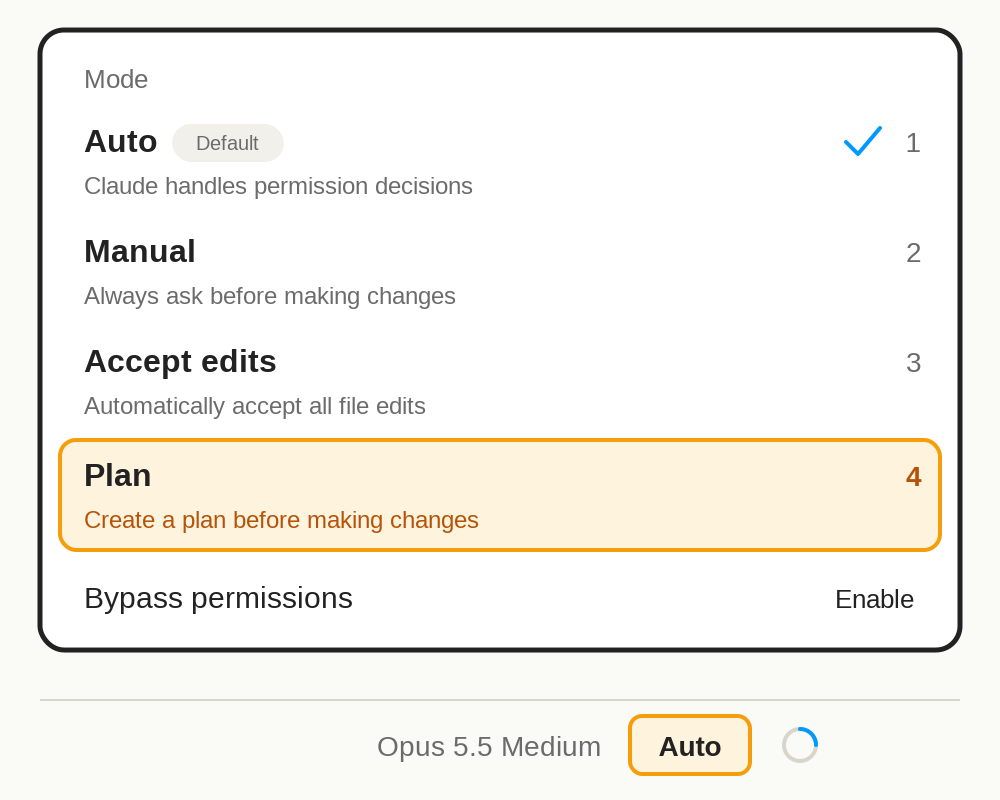
Choosing Plan here applies to this session only (one conversation with Claude Code). When you start a new session, check the mode button before your first message.
Why it's worth a few minutes
Reading a plan takes an extra few minutes, but it will likely save you much more time and tokens.